Using Rich Communication Services (RCS) messaging in Waterfall
Waterfall now supports text-only Rich Communication Services (RCS) messaging, allowing you to interact with your subscribers with verified, branded messages, providing them with richer, app-like experiences.
Setting up an RCS agent
To set up an RCS agent, reach out to your customer success representative for assistance.
Note: You can only send RCS messages after completing the Google RCS agent approval process. If your RCS agent is not approved, the RCS option will be disabled or unavailable during message composition. Only verified and approved brands are allowed to send RCS messages.
Composing and Sending RCS Messages
Once RCS is enabled for your account, short code, role, and originator, the option to compose and send RCS messages becomes available.
RCS Option in Message Component
The RCS option appears alongside other message types in the message component.
When composing a message from the message component, the RCS option appears in the message type, only if the logged-in user has the RCS permission.

Depending on the user’s permissions:
• With RCS Permission: The RCS option is visible alongside other message types. The user can select it to compose and send RCS messages.
• Without RCS Permission: The RCS option is not visible alongside other message types in the Waterfall UI.
Note: The RCS option appears as part of your SMS setup, standard message sending works as expected, even if no toolbar options are configured.
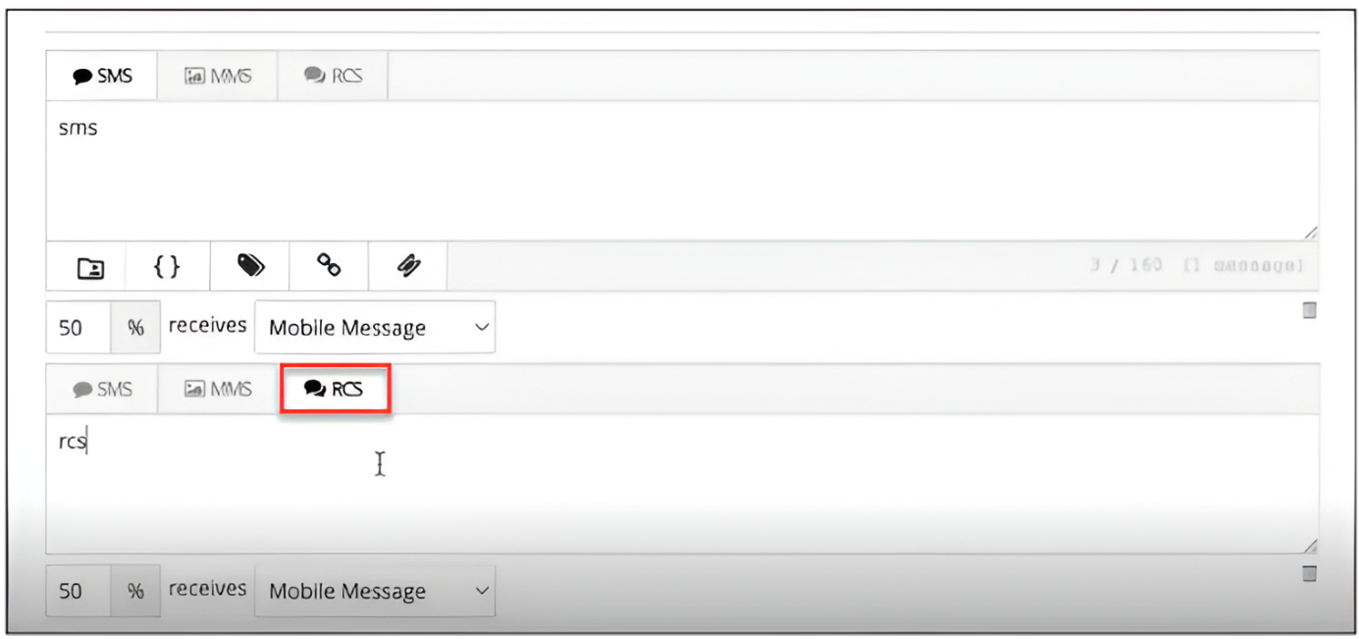
RCS Toolbar Options
You can access all SMS toolbar configurations directly in the RCS interface. All standard SMS toolbar options are available. You can use features like:
-
A/B Split
-
Manage Subscribers
-
Forward to Campaign
-
Headers
-
iShortener
-
Dynamic Insertion
-
Coupons
-
Tag metadata
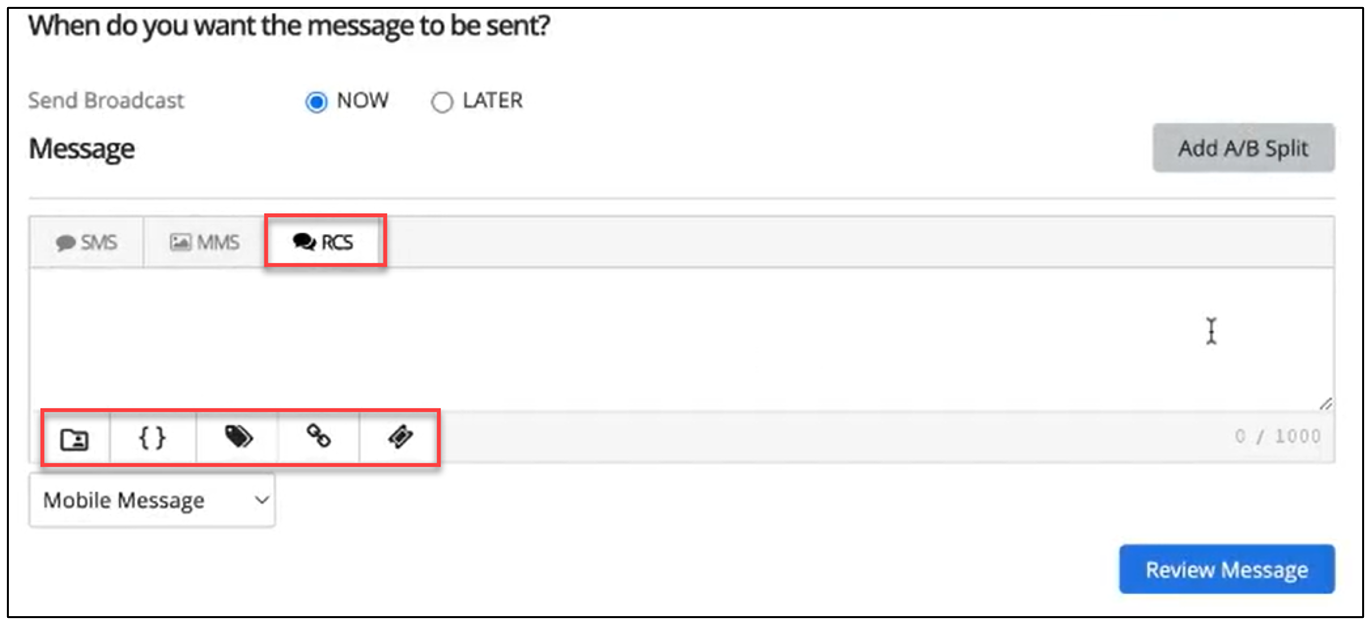
Note: The customizations that are available for the SMS message component will be automatically available for an RCS and SMS fallback message. If “Add custom SMS fallback message” is not selected, the SMS fallback will be disabled. In this case, if no fallback message is provided and the recipient’s device does not support RCS, the message will not be delivered.
For more information, see SMS Fallback Message.
Creating RCS Messaging: Text-Only Message
You can compose and send text-only RCS messages to your subscribers using your verified sender profile. This functionality ensures your communications are delivered with trusted branding and provides a fallback option when RCS is not supported. You can:
• Compose a basic RCS message using plain text.
• Send messages as a verified sender, ensuring trust and recognition.
• Include verified branding in RCS messages.
• Enable SMS fallback to automatically deliver a message via SMS when RCS is not supported on a recipient's device.
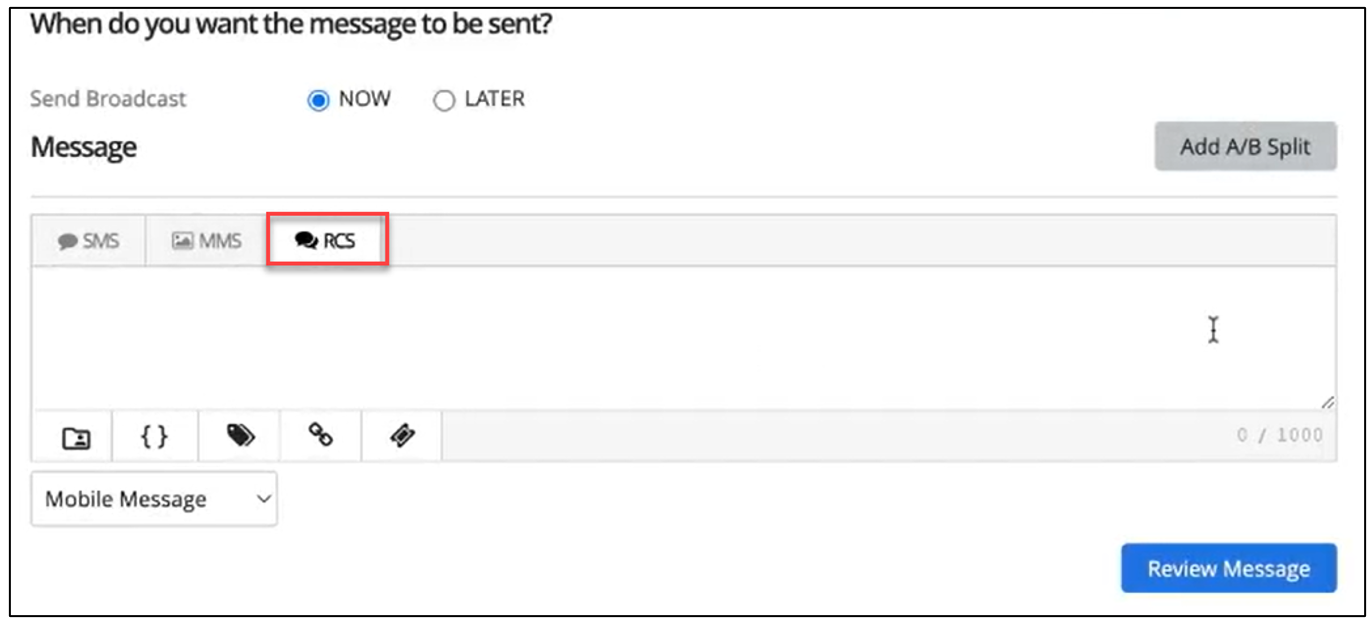
• Basic RCS message: Up to 160 characters.
• Single/Long form RCS message: 161 to 1000 characters.
The RCS message contains only text, supports diacritics (special characters and letters with accents), and supports the use of emoji.
SMS Fallback Message
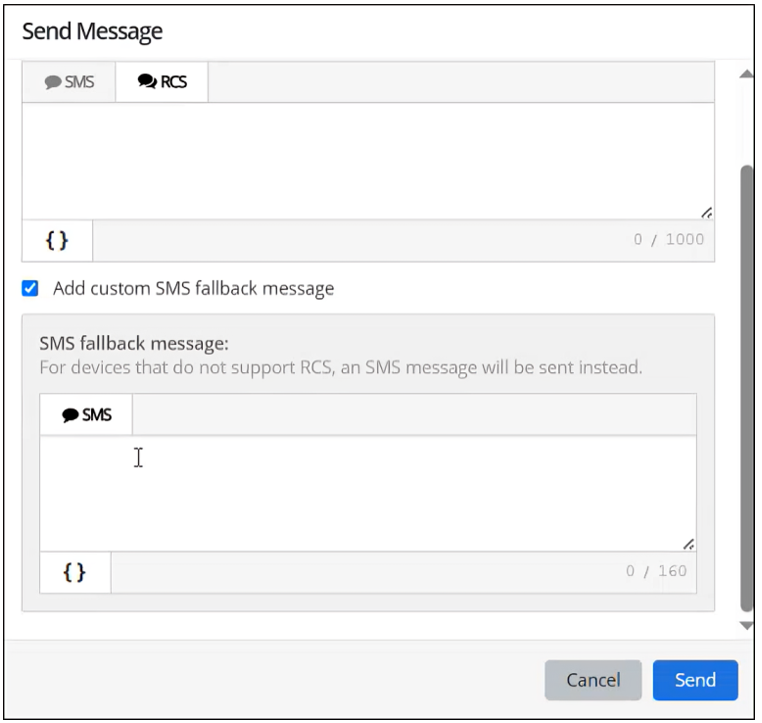
If a subscriber’s device or network does not support RCS, you can choose to send a fallback SMS message instead. This ensures the message is still delivered even if RCS is not supported.
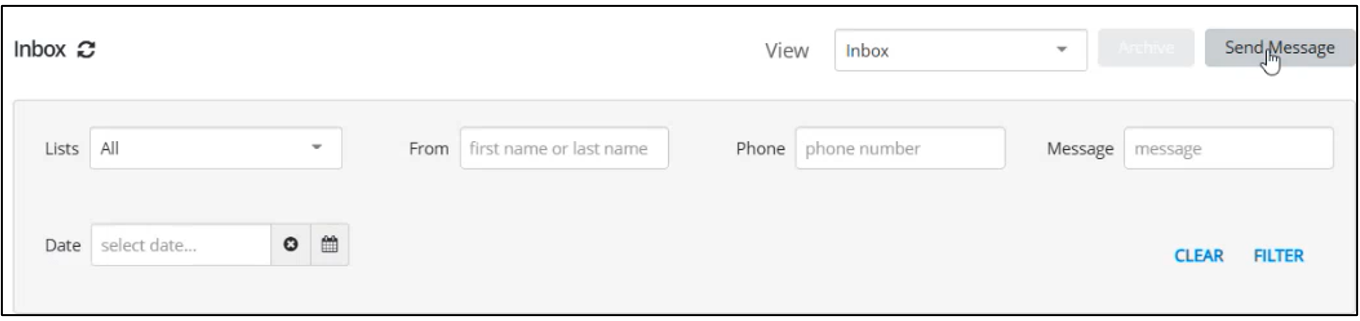
Note: The SMS fallback option is available only when sending broadcasts messages, campaign components, sending messages in inbox or individual (1:1) messages to subscribers in conversation (screenshots below).
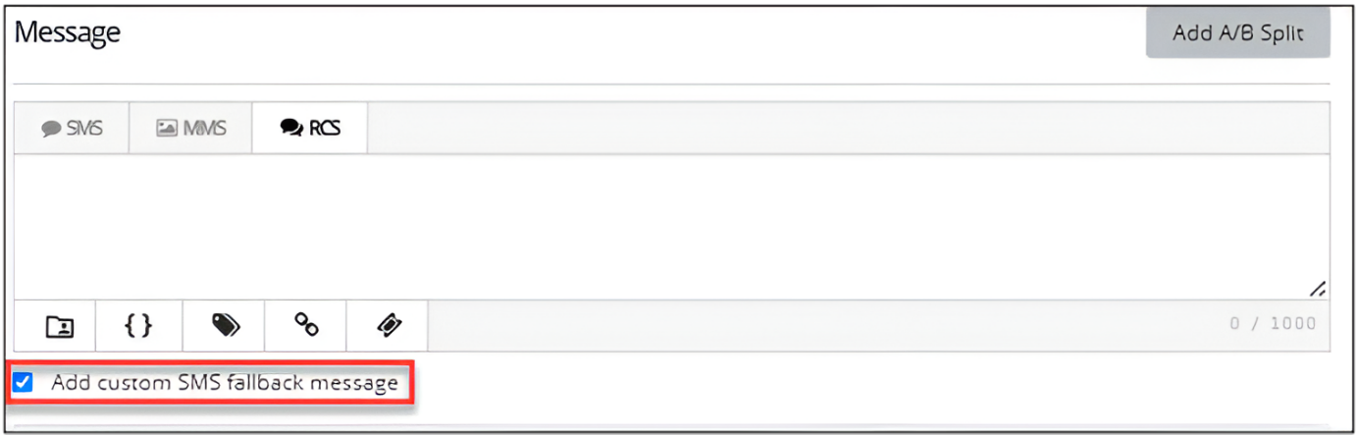
Broadcast Message
Inbox (Send Message)
Individual (1:1) messages to subscribers in conversation
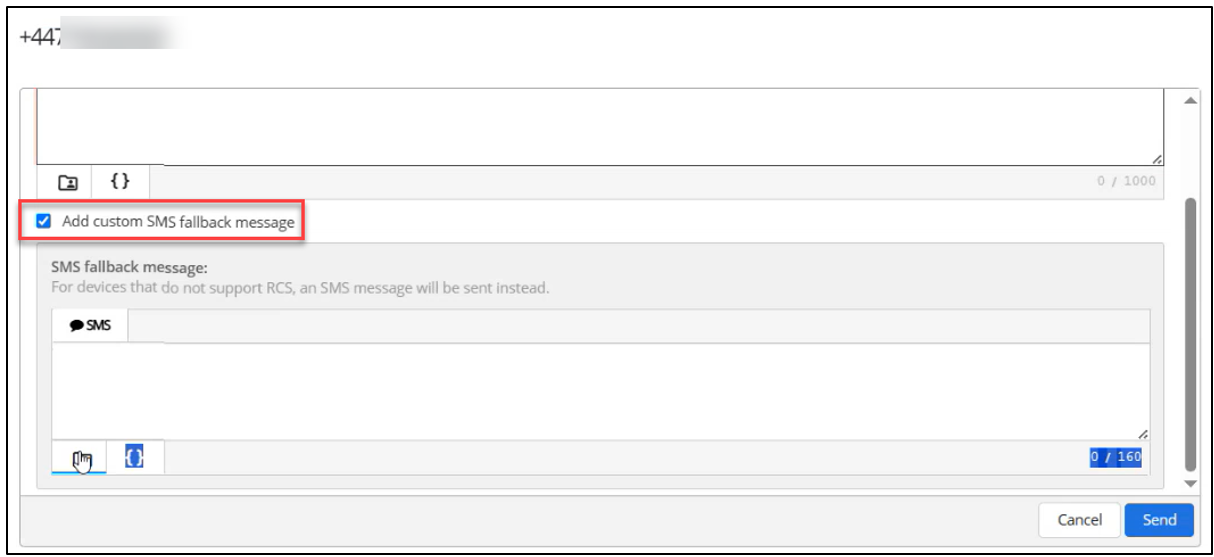
The "Add custom SMS fallback message" checkbox is selected by default. You can clear this checkbox if you don’t want to include a custom SMS fallback message.
When selected, a text field appears for the SMS fallback message where you can enter the fallback SMS message content.
The SMS fallback message can be customized as a single (160 characters) or multipart message (over 160 characters). Check the lower-right corner to see the character count and multipart message count (if any).
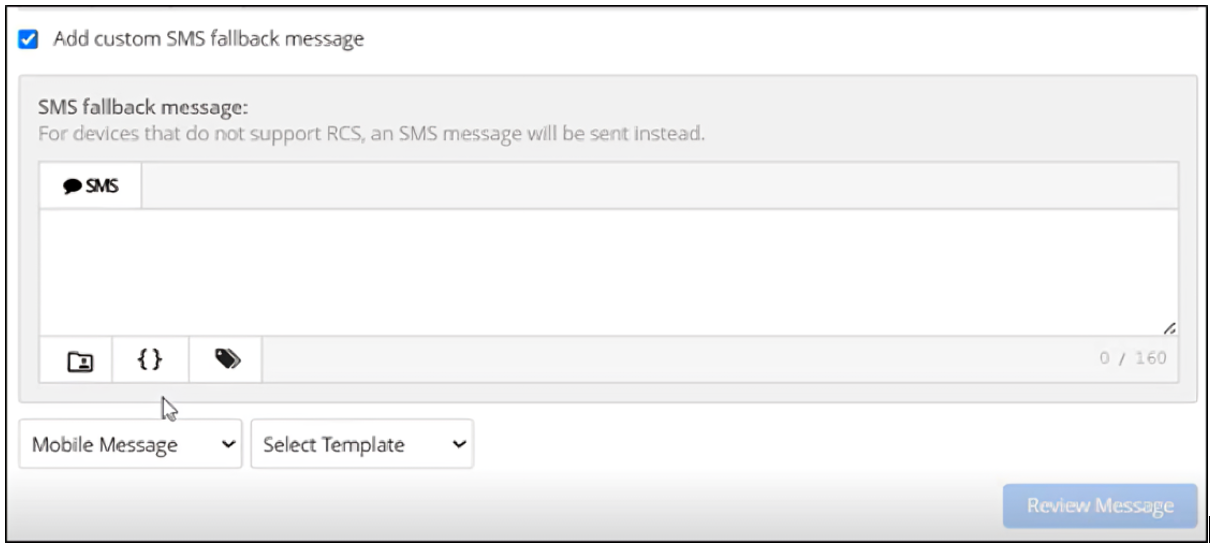
For SMS fallback messages, you can include some or all of the following customizations to add interest to your message. If enabled from Settings and the user has the necessary permissions, the following customizations can be selected when composing an RCS and SMS fallback message.
Note: The customizations that are available for the SMS message component will be automatically available for an RCS and SMS fallback message.
• Header (if available): Select  Header and select one or more identifying details from your log-in account to add to the top of your message:
-
Name: Your first name and last name, if available; if unavailable, your log-in username.
-
Mobile: The mobile number associated with your username.
-
Company (Subaccount): The company or subaccount you are using when you add the header.
When you are done, select Apply.
• Dynamic insertion: Select  Dynamic Insertion and select a metadata field from the dropdown list, then add a default value to display when a value is not available in a subscriber's profile. Select Insert to add the field to your message.
• Tag metadata: Select  Tag metadata and select a metadata field from the dropdown list. Specify a static or dynamic value for the metadata field:
-
To specify a static value, enter a value in the Metadata tag field.
-
To specify a dynamic value, enter one of the following tokens in the Metadata tag field:
-
$keyword: the keyword texted by the user
-
$MM$dd$yyyy: today's date
-
$inc: the value in a number field plus 1
-
$dec: the value in a number field minus 1
-
When you are done, select OK.
• Link shortener (if available): Select a URL in your message and then select  Link Shortener. Select Insert to reduce the character count by adding a shortened link to your message.
-
For the US Waterfall platform, dqs.co is the short domain for shortened URLs. For example, the shortened URL will appear as http://dqs.co/xxxxxxx.
-
For the UK Waterfall platform, sms.st is the short domain for shortened URLs. For example, the shortened URL will appear as http://sms.st/xxxxxxx.
RCS messaging is now available in Inbox, Conversations, Subscriber profiles, and Campaigns. To learn more, refer to “Inbox”, “Managing subscriber profiles” and “Campaigns”.